Skip to content

Stylish Sliding Panels Documention

1. Introduction (Overview)

The Stylish Sliding Panels module lets you present content in interactive sliding panels for a clean and modern layout. You can add multiple panels to showcase steps, services, or features. The module supports images on the right side, bottom layout, or content-only panels. It also includes flexible width options and responsive settings for all devices. 

2. Key Features

  • Add Multiple Sliding Panels: Easily add multiple panels to organize and display different content sections.
  • Module Width Options: Choose between custom width or full-width layout to fit your page design.
  • Multiple Layout Variants: Choose different layout styles to present your content in various ways.
  • Flexible Image Placement: Add images on the right side, bottom layout, or display content without images.
  • Custom Image Height: Adjust image height for desktop, tablet, and mobile devices.
  • Fully Responsive Design: Ensures the module looks clean and works smoothly on all screen sizes.

3. Installation – Downloading the Module from HubSpot Marketplace

  • Log in to your HubSpot account.
  • Go to the Marketplace from the main navigation menu.
  • Search for your module by name.
  • Find the module in the results and click Install.
  • If it’s a paid module, you can also click Buy Now to purchase and install directly.

4. How to Use – Adding the Module to Your Page

  • Open your HubSpot page editor.
  • Click on Add Module.
  • Search for your module by name.
  • Drag and drop the module into the desired section of your page.
  • Stylish Sliding Panels helps you display content in interactive panels that expand on user interaction. You can add multiple panels, place images on the right or bottom, or show content without images, making it easy to present steps, services, or features in a clean and modern layout.


5. Module Settings Guide

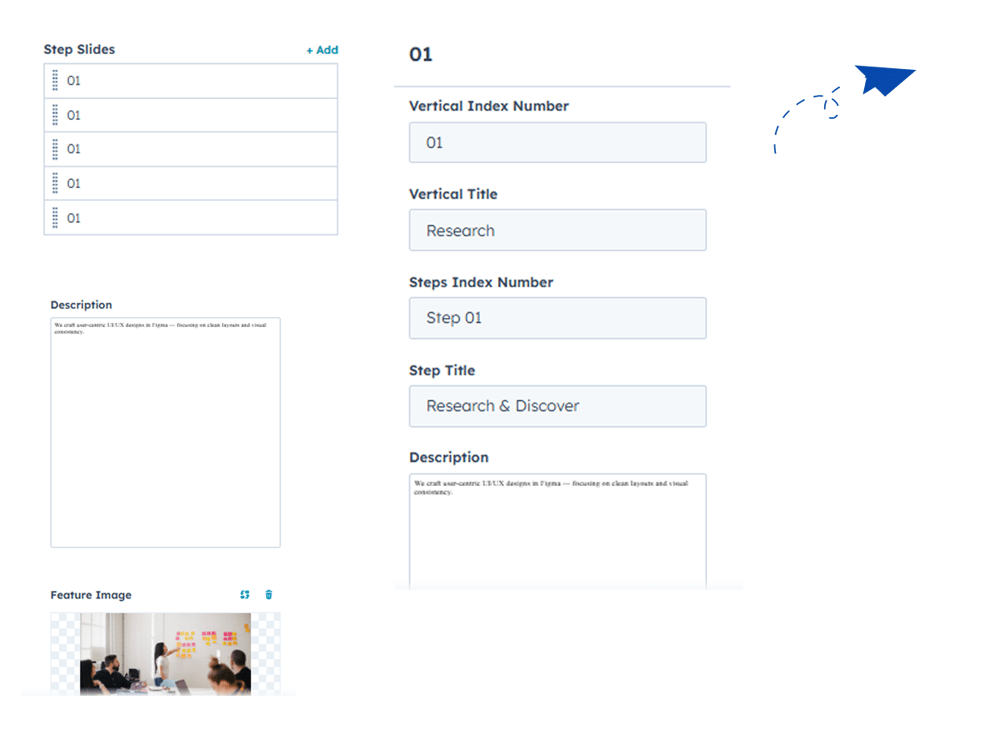
1. Content Tab 

  • Add Multiple Sliding Panels: Easily add multiple panels to organize and display different content sections.
  • Content Customization: Add index number, title, step description, and customize images for each panel. 

Group 1000002301

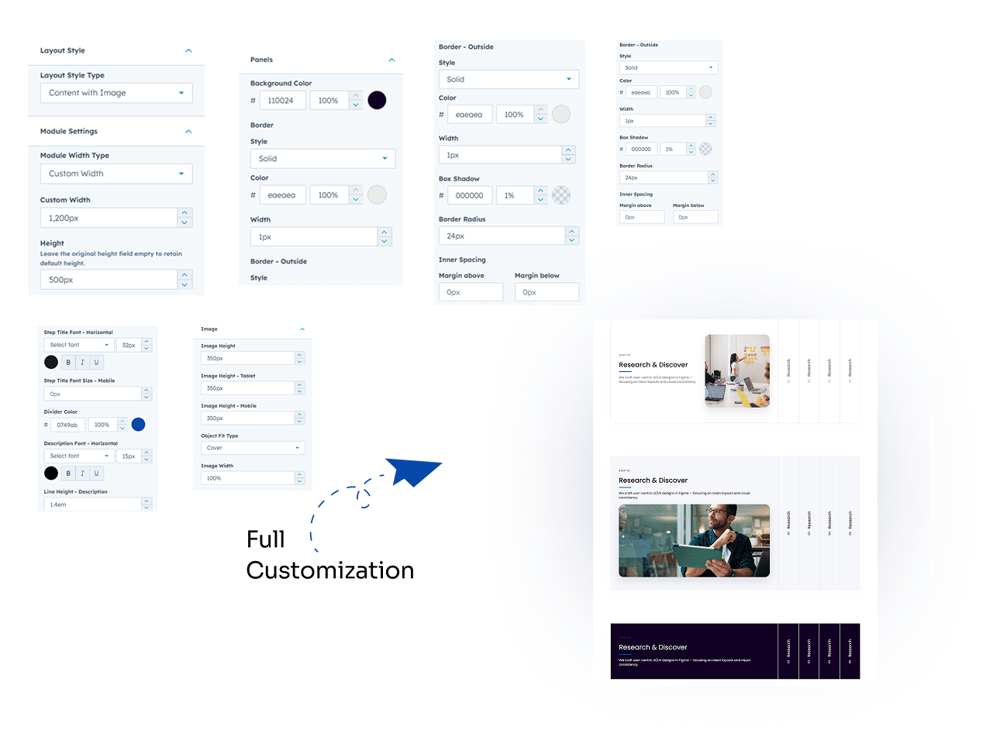
2. Style Tab


  • 1. Multiple Layout Styles:

    Choose from different layout styles to display sliding panels.

  • 2. Module Width Type:

    Select full width or custom width to match your page layout.

  • 3. Height Full Panel Customization:

    Adjust the height of the full panel section.

  • 4. Full Panel Customization:

    Customize border color, background color, outside border color, inner spacing, and minimum width.

  • 5. Content Customization:

    Control step color, font family, title font size, title color, mobile font size, divider color, line height, and description max width.

  • 6. Image Customization:

    Adjust image height for desktop, tablet, and mobile, choose object fit type, and set image width.

Group 1000002297


6. Examples / Demo Preview

View the module in action:https://www.modfrybus.shop/stylish-sliding-panels

7. Support & Contact

For questions or support, contact us at productqueriemodfrybus@outlook.com We’re happy to help!