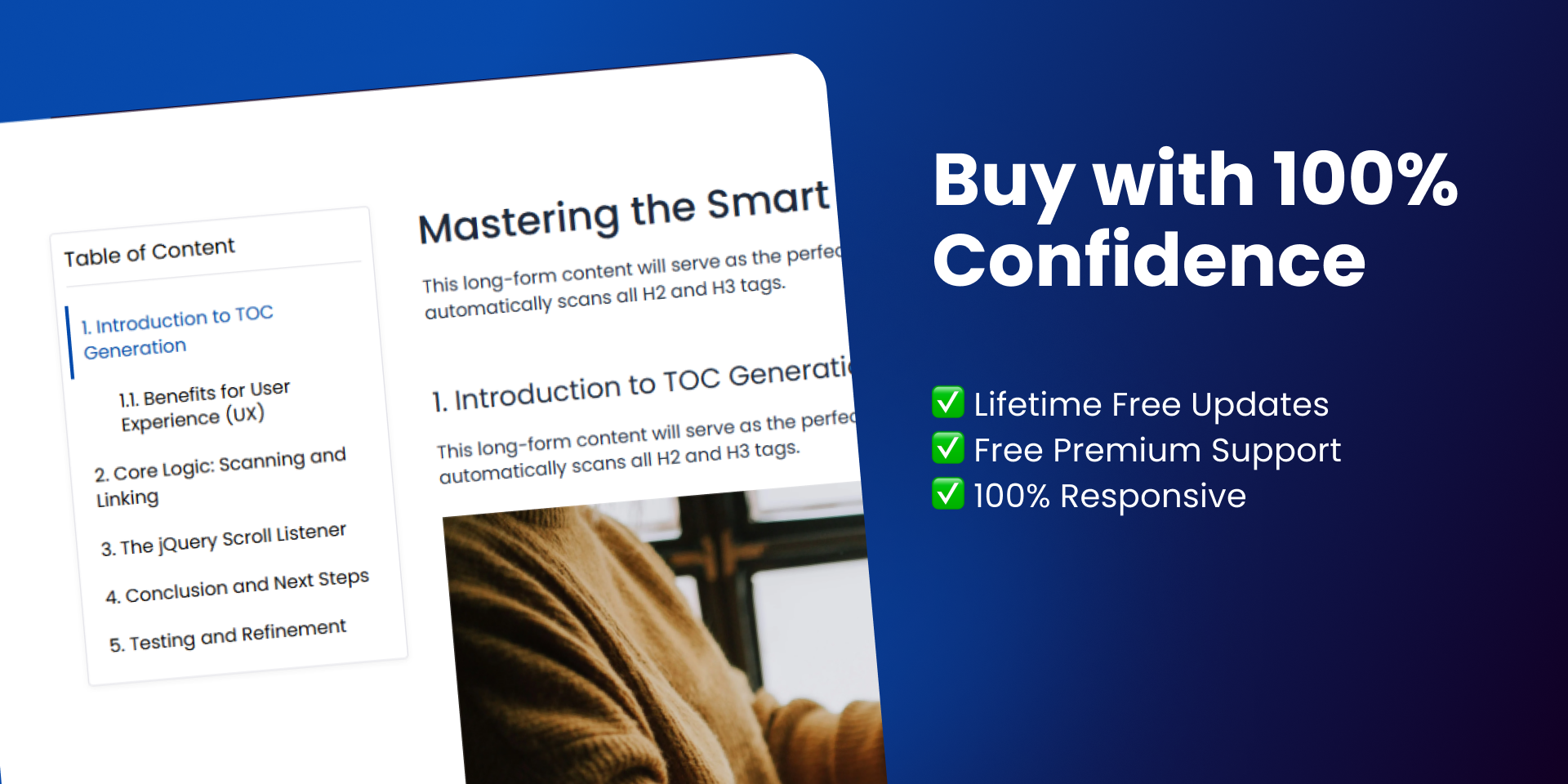
Mastering the Smart Table of Contents Module
This long-form content will serve as the perfect testing ground for our custom TOC navigator. It automatically scans all H2 and H3 tags.
1. Introduction to TOC Generation
This long-form content will serve as the perfect testing ground for our custom TOC navigator. It automatically scans all H2 and H3 tags.
1.1. Benefits for User Experience (UX)
By enabling jump links, we reduce frustration and bounce rates, keeping the user engaged with the necessary information. Excellent UX is the foundation of high-performing websites.
This block of text provides additional length for smooth scrolling and accurate detection of the current viewport position by the JavaScript logic below.
2. Core Logic: Scanning and Linking
The magic happens with jQuery's ability to scan the DOM (Document Object Model) for specific selector tags (like `h2` and `h3`) and programmatically assign unique IDs for linking.
The system must ensure that every scanned heading gets a unique ID, whether it had one initially or not, to guarantee that the anchor links work correctly.
2.1. CSS Sticky Position
The `position: sticky;` CSS property is the modern and performant way to achieve the fixed-on-scroll effect without complex, resource-intensive JavaScript. This ensures smooth performance even on older devices.
This paragraph fills out the second major section, providing a substantial amount of content before the next main heading appears on the screen.
3. The jQuery Scroll Listener
The main task for jQuery is to listen to the `scroll` event and check the viewport's position relative to the top of each heading element. This is the heart of the "active state" functionality.
We need to debounce the scroll listener in production to prevent performance issues, but for this simple demonstration, a direct listener is sufficient to show the functionality clearly.
3.1. Highlighting the Active State
We use a simple loop (`.each()`) to check if `scrollTop` is past a heading's offset. Once found, we toggle the `.active` CSS class on the corresponding TOC link.
This is the last significant content block, which should be long enough to allow the user to reach the bottom of the page while observing the final active link state in the TOC sidebar.
4. Conclusion and Next Steps
This fully functional component is ready to be adapted into your HubSpot modules or any other web project. Remember to adjust the `stickyOffset` variable!
4.1. Deployment Best Practices
Before launching this feature on a live site, always test the component thoroughly in a staging or development environment. Pay special attention to browser compatibility (especially older IE versions, if required) and mobile responsiveness across various devices (iOS and Android).
Furthermore, if your website uses a Content Delivery Network (CDN), ensure that the updated JavaScript file is correctly purged and delivered to all users globally to avoid caching issues that might cause unexpected behavior for some visitors.
5. Testing and Refinement
Testing across various devices and screen sizes is crucial. Pay close attention to how the sticky header affects the scroll offset, especially when the header height changes between desktop and mobile views.
A poorly calculated offset is the primary cause of headings being hidden underneath a fixed navigation bar, leading to a frustrating user experience. Always fine-tune the MOBILE_SCROLL_OFFSET and desktopStickyOffset variables until the smooth scrolling lands the target heading perfectly beneath the sticky bar.