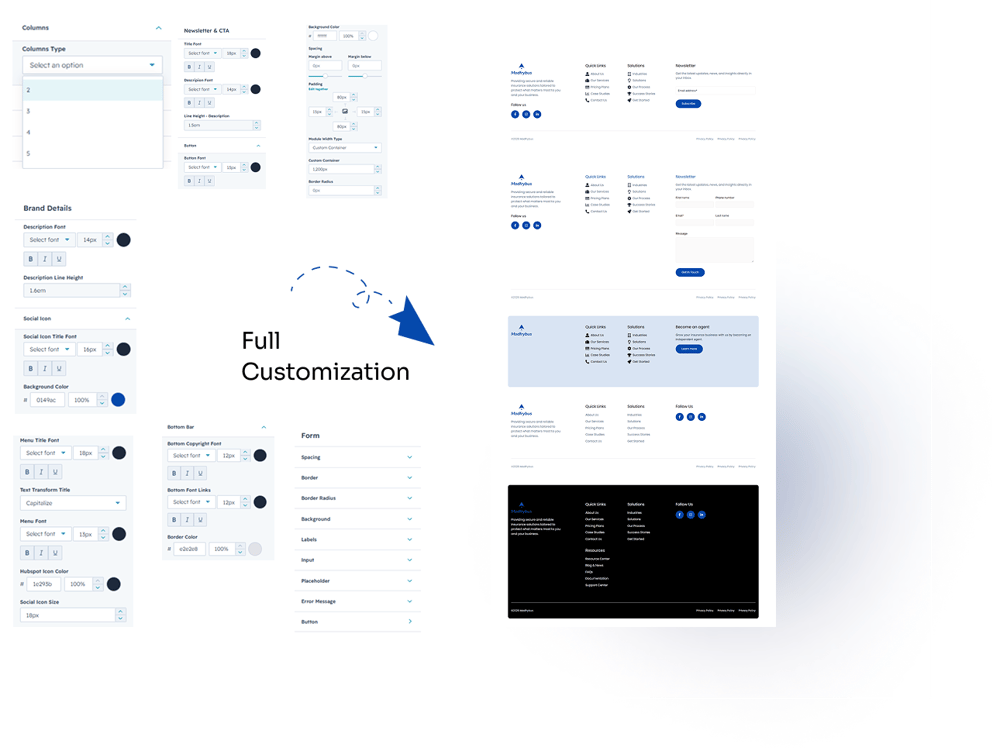
The Smart Footer Pro module makes it easy to create a professional, fully responsive website footer directly within HubSpot. Simply add the module to your page or global footer, choose your preferred footer layout, configure navigation columns, branding, social media links, newsletter or HubSpot form, CTA buttons, and bottom bar content. Customize colors, typography, spacing, and other design settings to match your brand. Once published, your footer will automatically provide a consistent and responsive experience across desktop, tablet, and mobile devices.
5. Module Settings Guide
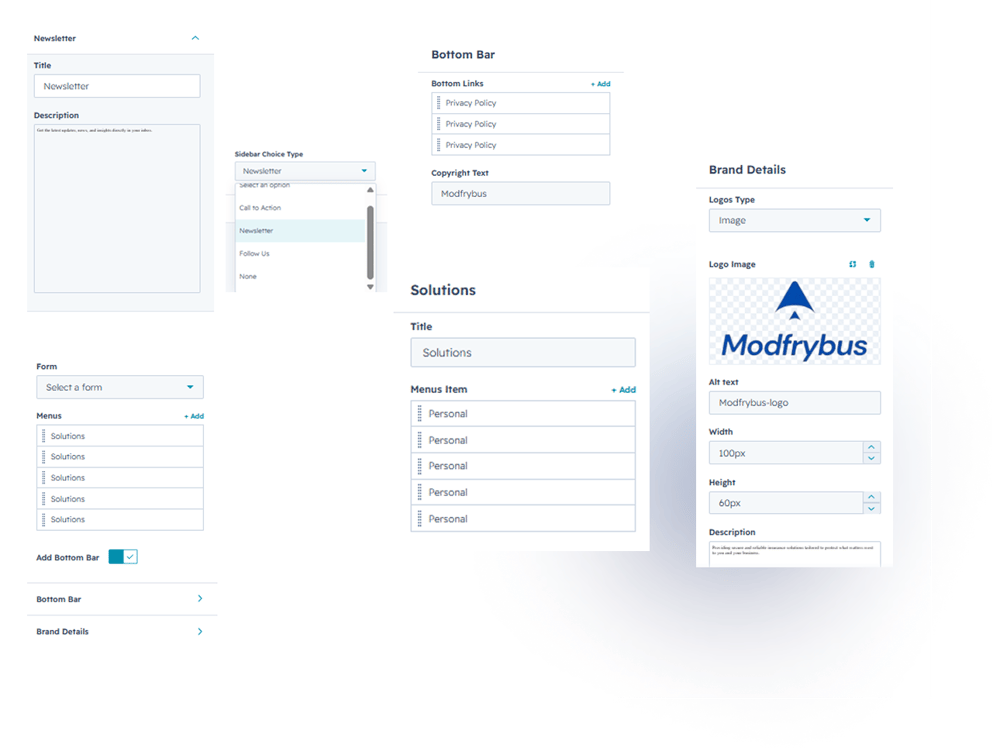
Content Tab:
1. Sidebar Type
Choose the content you want to display in the footer sidebar:
- Newsletter Subscription
- Call-to-Action
- Follow Us (Social Media)
2. Navigation Menus
Create organized footer navigation with ease:
- Add a menu title
- Add unlimited menu links
- Assign icons to each menu item
- Add custom links for every menu
3. Bottom Bar
Customize the footer's bottom section:
- Add copyright text
- Add bottom navigation links (Privacy Policy, Terms, etc.)
- Organize legal and additional footer links
4. Brand Details
Configure your website branding:
- Display a logo image or text-based brand name
- Add a custom brand link
- Add and manage social media icons with their respective links
2. Style Tab
1. Navigation Columns
Customize the appearance of your footer navigation columns:
- Choose from 5 column layout options
2. Brand Details
Style your brand section to match your website:
- Font family
- Font size
- Font weight
- Text color
- Line height
- Typography settings
3. Follow Us
Customize the social media section:
- Title font settings
- Font size and color
- Social icon size
- Icon color
- Icon background color
- Hover icon color
- Hover background color
- Icon spacing and border radius
4. Navigation Menus
Control the styling of your footer menus:
- Menu title typography
- Text transform (Uppercase, Lowercase, Capitalize)
- Menu link font settings
- Font size
- Text color
- Hover color
- HubSpot icon color
5. Newsletter & Call-to-Action
Customize the newsletter and CTA section:
- Title typography
- Description typography
- Line height
- Button font settings
- Button text color
- Button background color
- Button size
- Button border radius
- Button hover styles
6. Module Settings
Configure the overall footer appearance:
- Background color
- Module spacing (padding & margins)
- Module width (Custom Width or Full Width)
- Border radius
7. Bottom Bar
Style the footer bottom bar:
- Font size
- Font color
- Typography
- Border color
- Background color
- Link colors and hover styles
8. HubSpot Form Customization
Fully customize the embedded HubSpot form:
- Form spacing
- Border width and color
- Border radius
- Background color
- Input field styling
- Label typography
- Placeholder styling
- Error message styling
- Submit button typography and colors
- Button border radius and hover effects