Magic Accordion is a smart HubSpot module with Auto-Play and Progress Bars. It automatically cycles through items but allows manual Clicks for full control. Fully Responsive, Multi-Instance support, and easy to customize for any device.
Magic Accordion Documention
1. Introduction (Overview)
2. Key Features
-
Interactive Click & Play: Users can Click any Accordion Item to open it instantly, giving them full control over what they want to read.
-
Auto-Advancing Progress: Each Accordion Item features an animated progress bar that automatically transitions to the next item when the timer finishes.
-
Smart Hover Pause: Includes a toggle to pause the animation when a user hovers over an Accordion Item, allowing for uninterrupted reading.
-
Multi-Instance Accordion: Use multiple accordions on a single page without any conflicts. Each one operates independently with its own unique content and settings.
-
Loop Control Toggle: Choose to let the accordion cycle infinitely or stop automatically once the last Accordion Item is reached.
-
Fully Customizable Design: Easily show or hide images and headings within the Accordion Items using simple dashboard switches.
-
Fully Responsive Design: The accordion looks perfect and works smoothly on all devices—Desktop, Tablet, and Mobile.
3. Installation – Downloading the Module from HubSpot Marketplace
- Log in to your HubSpot account.
- Go to the Marketplace from the main navigation menu.
- Search for your module by name.
- Find the module in the results and click Install.
- If it’s a paid module, you can also click Buy Now to purchase and install directly.
4. How to Use – Adding the Module to Your Page
- Open your HubSpot page editor.
- Click on Add Module.
- Search for your module by name.
- Drag and drop the module into the desired section of your page.
-
Magic Accordion is a smart, fully customizable module for HubSpot. It features Auto-Play with progress bars and instant Click control. It is 100% Responsive, works on all devices, and supports multiple instances on one page.
5. Module Settings Guide
1. Content Tab-
Custom Headings: Add and edit headings for accordion item.
-
Multi-Instance Support: Add multiple accordions to one page and edit each one separately.
-
Split Layout: Add an image on the right side and the interactive accordion on the left side for a premium look.
2. Style Tab
-
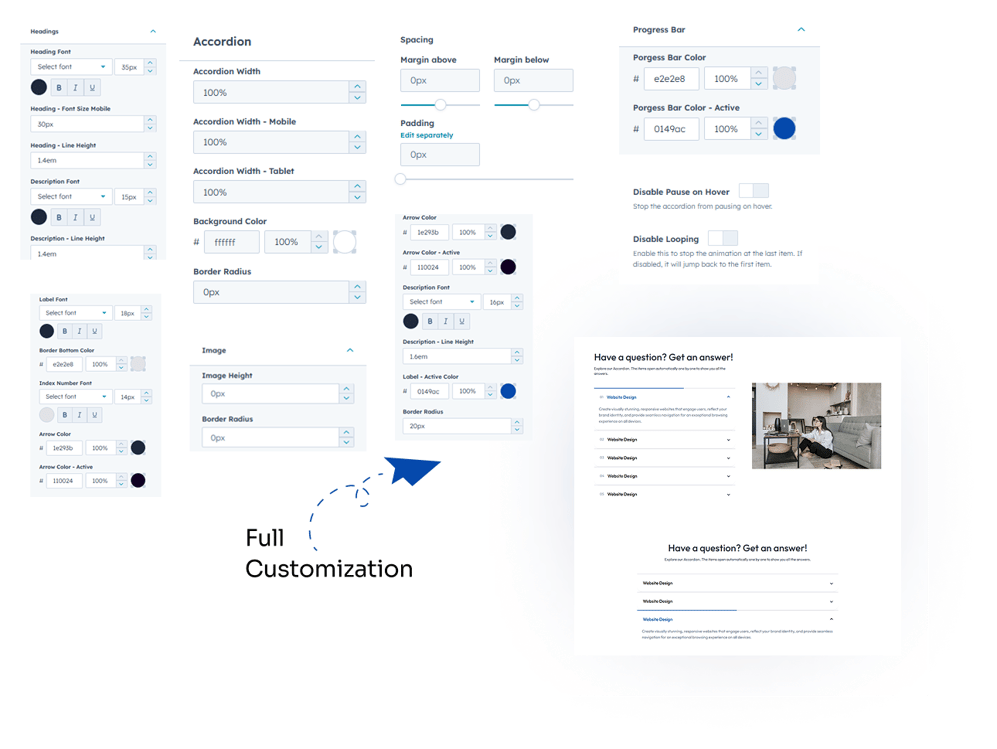
Customizable Headings: Full control over Heading and Description fonts, including specific settings for Line Height, Mobile Font Size, and Mobile Alignment to ensure a perfect look on all screens.
-
Accordion Container Styling: Adjust the Accordion Width for Desktop, Tablet, and Mobile separately, with custom options for Background Color, Border Radius, and Spacing (Padding/Margin).
-
Progress Bar Customization: Easily change the Base Color and the Active Progress Color to match your brand's theme perfectly.
-
Accordion Item Details: Completely customize the Label Font (size/color), Active Label Color, Description Font, Index Number Font, and Arrow Color. Plus, control the Border Bottom Color and Border Radius.
-
Image Customizable: Full control over the layout with adjustable Image Height and Border Radius options to match your brand style.
6. Examples / Demo Preview
View the module in action:https://www.modfrybus.shop/magic-accordion
7. Support & Contact
For questions or support, contact us at productqueriemodfrybus@outlook.com We’re happy to help!