Skip to content

Interactive Content Tabs Documention

1. Introduction (Overview)

The Interactive Content Tabs module allows you to create interactive tabs with cards that can display images, videos, and icons. Users can click on any card or icon to instantly switch content. The module is fully responsive and works seamlessly across desktop, tablet, and mobile devices. It supports both HubSpot’s built-in icons and custom icons. You can also reverse the layout for design flexibility.

2. Key Features

  • Multiple Card Tabs with Icons – Add as many interactive main cards as needed. Each card can include clickable icons to update content dynamically.
  • Click to Switch Content – Instantly update images or videos on click.
  • Image & Video Support – Display rich media in each tab for engaging content.
  • HubSpot & Custom Icons – Use built-in icons or upload your own.
  • Reverse Layout Option – Swap cards and content sections for flexibility.
  • Fully Responsive – Optimized for desktop, tablet, and mobile.

3. Installation – Downloading the Module from HubSpot Marketplace

  • Log in to your HubSpot account.
  • Go to the Marketplace from the main navigation menu.
  • Search for your module by name.
  • Find the module in the results and click Install.
  • If it’s a paid module, you can also click Buy Now to purchase and install directly.

4. How to Use – Adding the Module to Your Page

  • Open your HubSpot page editor.
  • Click on Add Module.
  • Search for your module by name.
  • Drag and drop the module into the desired section of your page.
  • Interactive Content Tabs lets users click on cards or icons to instantly switch images, videos, or content. Fully responsive, easy to use, supports HubSpot or custom icons, and creates dynamic, engaging pages with smooth transitions.


5. Module Settings Guide

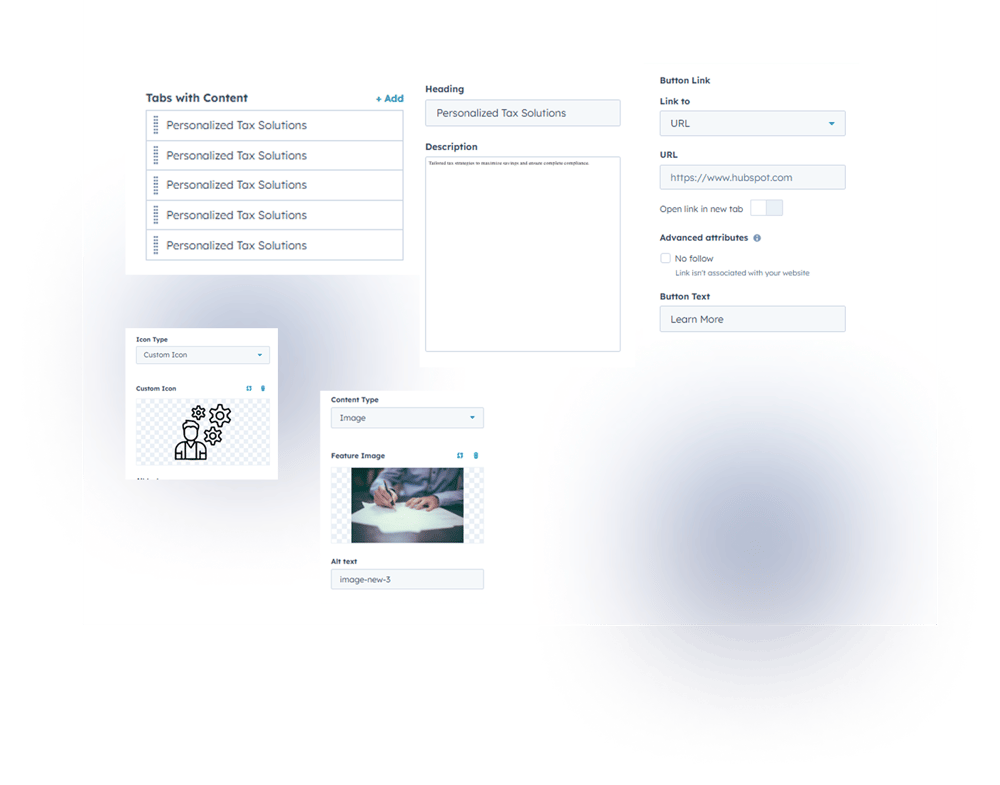
1. Content Tab 

  • Multiple Card Tabs with Icons  – Add as many interactive main cards as needed. Each card can include clickable icons to update content dynamically. 
  • Content Customization – Easily edit heading, description, and button for each card.
  • Image / Video Support – Option to display either an image or a video in the content area.
  • HubSpot or Custom Icons – Use HubSpot icons or upload your own custom icons.

Group 1000002295

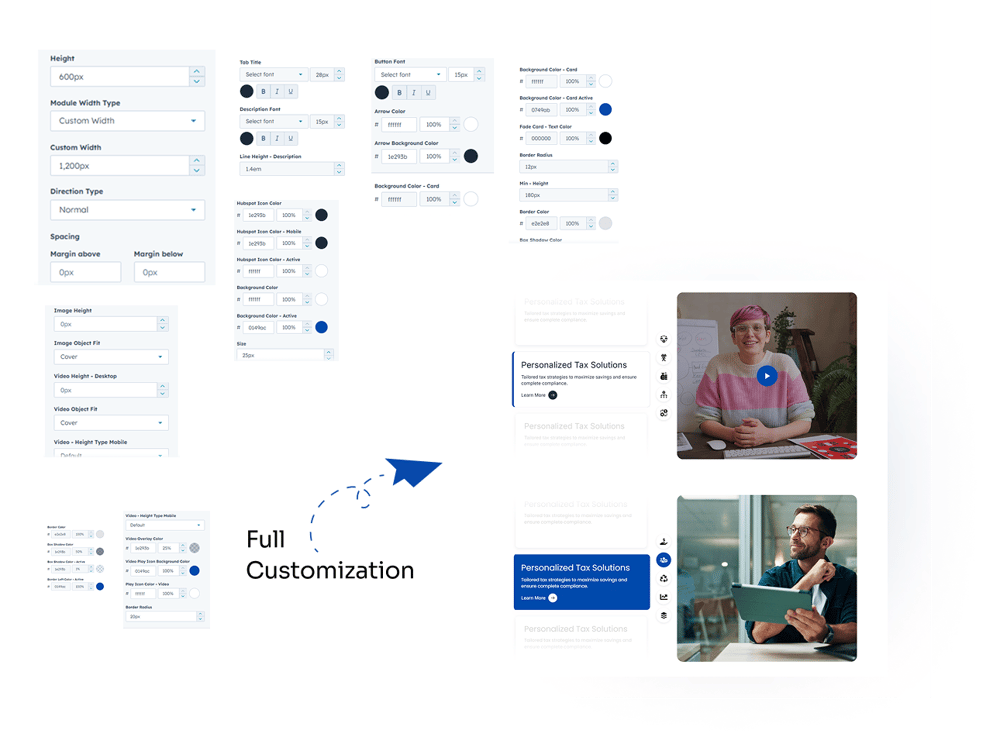
2. Style Tab

  • Module Width Type: Choose full width or custom width.
  • Custom Height: Adjust the module height as needed.
  • Direction Type: Choose between row layout or reverse layout.
  • Module Spacing: Control spacing around the module.
Tabs
  • Content Customization: Adjust title, description, color, font size, font family, and line height.
  • Button Customization: Set font color, arrow color, and background color.
  • Card Customization: Modify card color, border color, minimum height.
  • Border Settings: Set border color, box shadow, and active left border color.
Icon Tab
  • HubSpot icon or custom icon.
  • Customize icon color, active color, background color, and active icon size.
Image & Video
  • Image Options: Set image height, object-fit cover.
  • Video Options: Desktop and mobile video height, video overlay color, play icon color, and play button background.
  • Border Radius: Customize border radius for images and videos.
Group 1000002293


6. Examples / Demo Preview

View the module in action:https://www.modfrybus.shop/interactive-content-tabs

7. Support & Contact

For questions or support, contact us at productqueriemodfrybus@outlook.com We’re happy to help!