Skip to content

Hero Slider Pro Documention

1. Introduction (Overview)

Hero Slider Pro helps you create modern and responsive hero sections in HubSpot. Add multiple slides with horizontal or vertical layouts, images, videos, colors, content, forms, badges, ratings, logos, and up to two CTA buttons.

You can also control slider navigation, speed, looping, and mouse-wheel settings, along with responsive height, alignment, and spacing for desktop, tablet, and mobile.

2. Key Features

  • Horizontal & Vertical Slider Options: Select the slider direction that suits your page design.
  • Multiple Slides: Add multiple slides and give each one its own content and design.
  • Simple Hero Banner: Create a clean banner with your content without using a complex layout.
  • Image With Content: Place an image alongside your text and create a modern split hero layout.
  • Form With Content: Add a HubSpot form next to your content for signups, enquiries, or lead generation.
  • Image, Video & Color Backgrounds: Give every slide a different look using an image, video, or background color.
  • Rich Hero Content: Add slogans, highlight text, ratings, logos, promo badges, trust badges, and other supporting content.
  • Two CTA Buttons: Add two buttons to a slide for primary and secondary actions.
  • Responsive Height Settings: Set different banner heights for desktop, tablet, and mobile.
  • Responsive Alignment & Spacing: Control content alignment and spacing for each screen size.
  • Slider Arrows & Counter: Add navigation arrows and slide numbers to help visitors move through your slides.
  • Autoplay & Speed Settings: Control how quickly slides change and whether the slider plays automatically.
  • Loop & Mouse Wheel Controls: Enable continuous looping and mouse-wheel navigation when needed.
  • Fully Responsive: Make sure your hero slider works smoothly across desktop, tablet, and mobile screens.

Use Cases

Hero Slider Pro can be used for homepage heroes, landing pages, product launches, service sections, event promotions, campaign banners, SaaS websites, agency websites, and lead generation pages.

3. Installation – Downloading the Module from HubSpot Marketplace

  • Log in to your HubSpot account.
  • Go to the Marketplace from the main navigation menu.
  • Search for your module by name.
  • Find the module in the results and click Install.
  • If it’s a paid module, you can also click Buy Now to purchase and install directly.

4. How to Use – Adding the Module to Your Page

  • Open your HubSpot page in the drag-and-drop editor.
  • Search for Hero Slider Pro in the module panel.
  • Drag and drop the module onto your page.
  • Add your slides and customize the content, layout, background, buttons, and other settings.
  • Use the responsive options to adjust the module for desktop, tablet, and mobile.
  • Preview your page and publish the changes when everything looks right.

5. Module Settings Guide

Content Tab: 

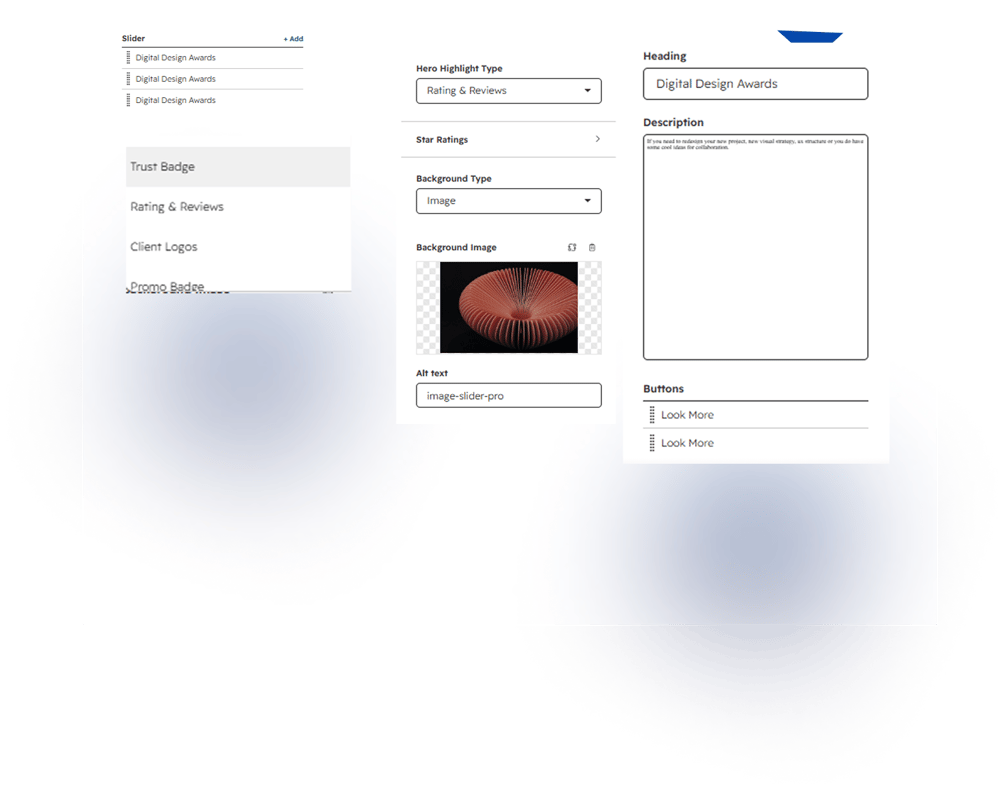
1. Slider

Description: Add and manage multiple slides with unique content and settings for each slide.

2. Hero Highlight

Description: Choose ratings, reviews, logos, badges, slogans, or other highlight content.

3. Heading & Description

Description: Add a heading and description to introduce your message and engage visitors.

4. Background

Description: Choose an image, video, or color to create the right background for each slide.

5. Buttons

Description: Add up to two buttons to guide visitors toward important actions or pages.

6. Star Ratings

Description: Add star ratings to highlight reviews, customer feedback, or trust signals.
Group 1000002493

2. Style Tab

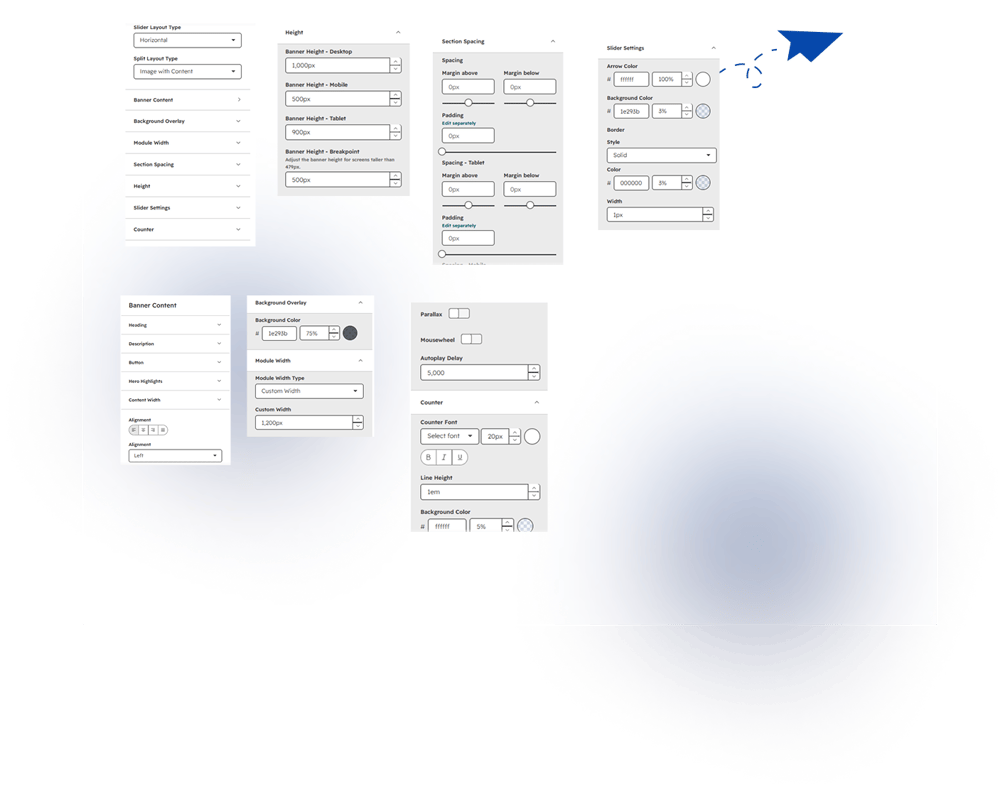
Banner Content

Customize the overall content styling and layout of each hero slide.

Heading

Style the hero heading to match your design and visual hierarchy.

Description

Customize the description text displayed below the hero heading.

Button

Style the CTA buttons with your preferred text, colors, spacing, and appearance.

Hero Highlights

Customize highlight text to emphasize important information within the hero content.

Content Width

Set the width of the hero content to control how much space it occupies.

Alignment

Choose the content alignment to position hero elements according to your layout.

Background Overlay

Add an overlay to the background and adjust its color and opacity for better readability.

Background Color

Choose an overlay color and control its opacity over the slide background.

Module Width

Control the overall width of the hero section using a full or custom width option.

Custom Width

Set a custom maximum width for the module to fit your page layout.

Section Spacing

Adjust the spacing around the hero section using responsive margin and padding settings.

Spacing

Set top, bottom, and overall padding values to control section spacing.

Spacing – Tablet

Customize margin and padding specifically for tablet screen sizes.

Spacing – Mobile

Adjust section spacing separately for mobile devices.

Height

Set responsive banner heights for different screen sizes and breakpoints.

Banner Height – Desktop

Set the banner height specifically for desktop screens.

Banner Height – Mobile

Set a separate banner height for mobile devices.

Banner Height – Tablet

Customize the banner height for tablet screen sizes.

Banner Height – Breakpoint

Set a custom banner height for screens below your selected breakpoint.

Slider Settings

Customize navigation, background, borders, autoplay, and other slider behavior.

Arrow Color

Choose the color of the slider navigation arrows.

Background Color

Set the background color of the slider navigation arrows.

Border

Customize the arrow border style, color, opacity, and width.

Mousewheel

Allow visitors to navigate between slides using mouse-wheel scrolling.

Autoplay Delay

Set the time delay between automatically changing slides.

Counter

Customize the appearance of the slide counter shown with the slider.

Counter Font

Choose the font family, size, weight, style, and decoration for the counter.

Line Height

Adjust the line height of the slide counter for proper text spacing.

Background Color

Set a background color for the slide counter and adjust its opacity.

Group 1000002495

6. Examples / Demo Preview

View the module in action: https://www.modfrybus.shop/hero-slider-pro

7. Support & Contact

For questions or support, contact us at productqueriemodfrybus@outlook.com We’re happy to help!