Skip to content

Floating Multi CTA Documention

1. Introduction (Overview)

Floating Multi CTA is an interactive module that displays a floating action button at the bottom of the screen. On click, it expands to reveal multiple social or custom CTA icons like Facebook, Instagram, and more. You can position it on the left or right, enable a copy URL feature, and choose between custom, HubSpot, or first-letter styles. Fully responsive and easy to customize, it helps improve user engagement and sharing across all devices.

2. Key Features

  • Floating CTA positioned at bottom (left or right side)
  • Click to expand multiple hubspot icon or custom icons
  • Add unlimited CTA items (Facebook, Instagram, Twitter, etc.)
  • Built-in “Copy URL” feature with show/hide option
  • Support for HubSpot icons, custom icons, or first-letter word
  • Option to show icons with or without titles
  • Fully responsive across desktop, tablet, and mobile

3. Installation – Downloading the Module from HubSpot Marketplace

  • Log in to your HubSpot account.
  • Go to the Marketplace from the main navigation menu.
  • Search for your module by name.
  • Find the module in the results and click Install.
  • If it’s a paid module, you can also click Buy Now to purchase and install directly.

4. How to Use – Adding the Module to Your Page

  • Open your HubSpot page editor.
  • Click on Add Module.
  • Search for your module by name.
  • Drag and drop the module into the desired section of your page.
  • Floating Multi CTA is a flexible module that adds a floating button to your site, expanding into multiple social or custom icons on click. It supports left/right positioning, copy URL functionality, and various icon styles, all optimized for a fully responsive experience.” 


5. Module Settings Guide

1. Content Tab 

  • Position Control: Set the floating CTA position to left or right side.

  • Multiple Items: Add multiple icons with text as needed.

  • Default Open State: Choose to show social icons open by default.

  • Copy CTA Option: Enable built-in copy URL button for quick link sharing.

  • Trigger Icon Options: Select trigger icon from HubSpot, custom, or default options.
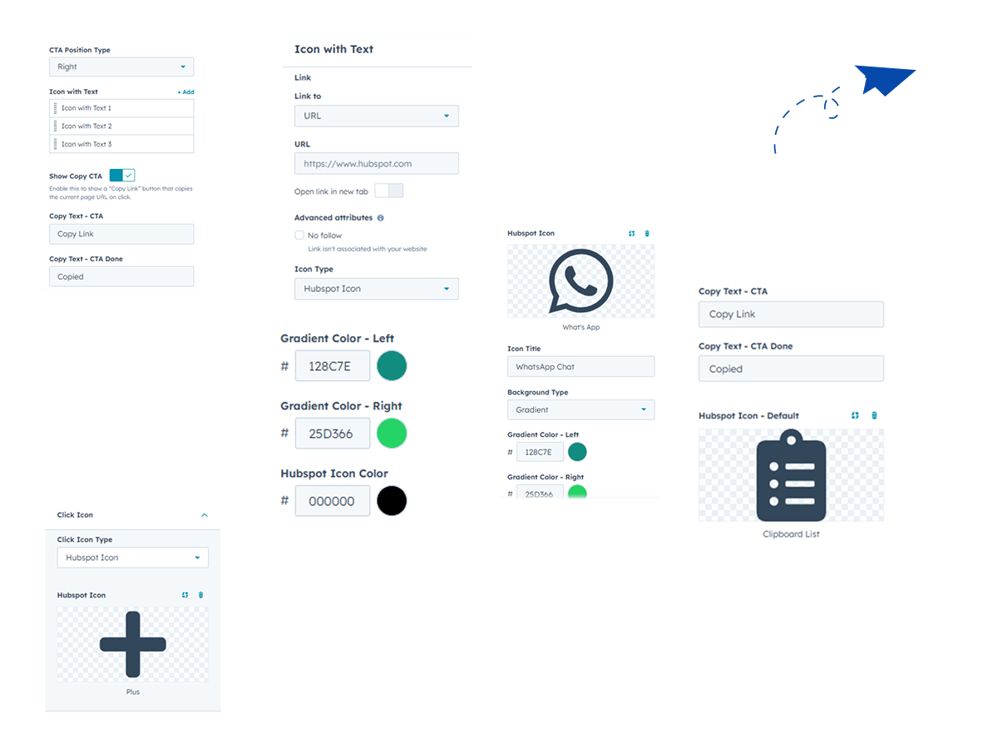

Group 1000002341

2. Style Tab

  • Click Icon Styling: Customize gradient or background color, box size, border radius, shadow, icon size, HubSpot icon color, and add rotate transform on click.

  • Expanded Items Styling: Adjust item border radius, spacing, add shadow, style first-letter font, and customize copy CTA & HubSpot icon colors.

  • Icon Title Styling: Control title font color, size, and icon size for better readability and design
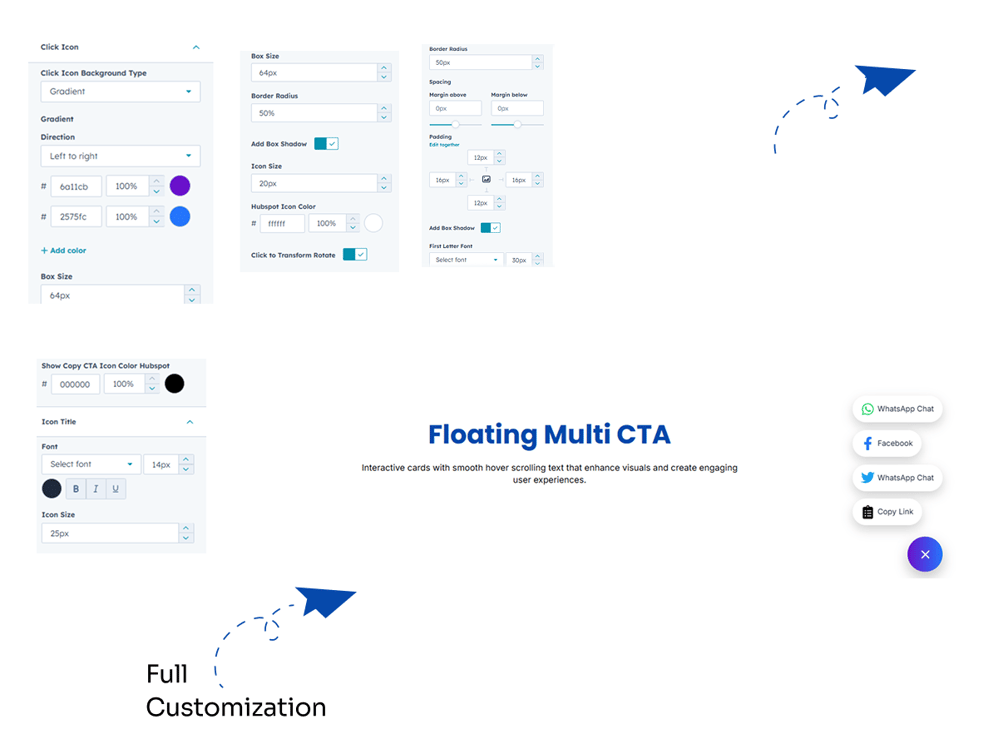
Group 1000002332


6. Examples / Demo Preview

View the module in action: https://www.modfrybus.shop/floating-multi-cta

7. Support & Contact

For questions or support, contact us at productqueriemodfrybus@outlook.com We’re happy to help!