5. Module Settings Guide
Content Tab:
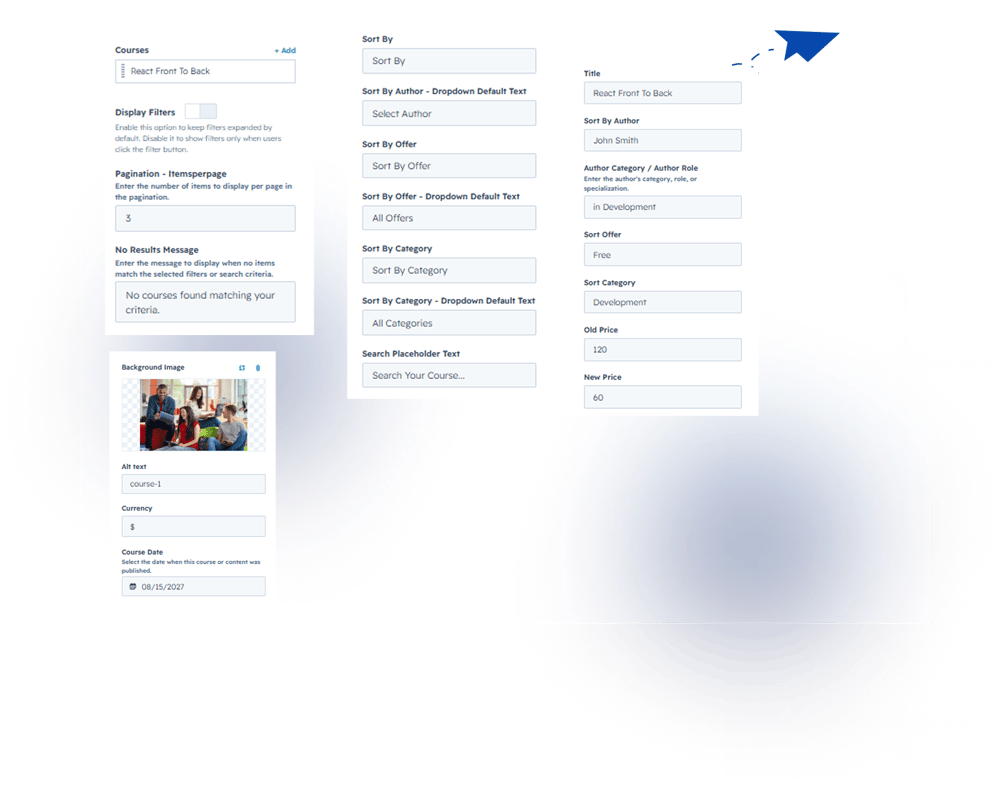
Editable Filter Labels
Customize all filter labels and button text to match your website or brand.
Add Multiple Courses
Add unlimited course items with the following details:
- Course Title
- Author Name
- Short Description
- Category
- Offer Type (Free/Paid)
- Old Price
- New Price
- Lesson Count
- Student Count
- Rating (Stars)
- Course Link
- Button Text
- Course Image
- Author Image
- Release Date
- Currency
Filter Display
Choose how filters appear on the page:
- Expandable Filters – Display filters when visitors click the Filter button.
- Always Visible Filters – Keep search, sorting, and filters visible at all times.
Pagination
Set the number of courses displayed per page.
No Results Message
Customize the message displayed when no courses match the selected filters or search.
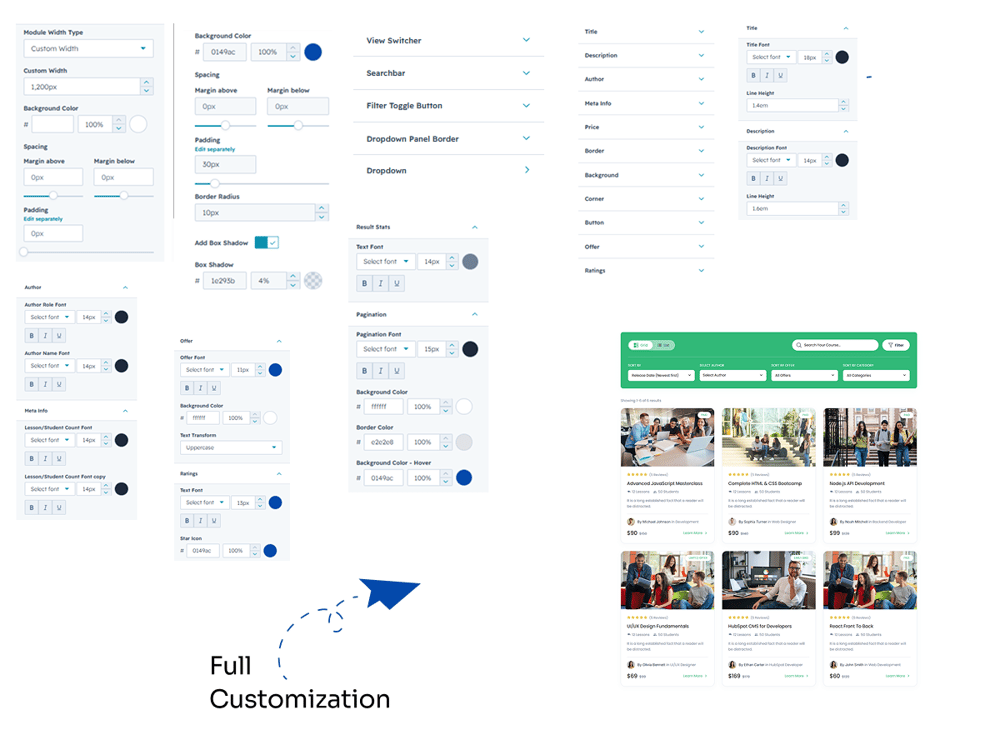
2. Style Tab
1. Module Settings
Customize the overall module appearance and layout.
- Module Width (Full Width / Custom Width)
- Background Color
- Section Spacing (Top & Bottom)
2. Top Bar Customization
Style the top controls section.
- Background Color
- Padding & Spacing
- Border Radius
- Box Shadow
View Switcher
- Font Family
- Font Size
- Text Color
- Active Text Color
- Icon Color
- Active Icon Color
- Button Background Color
- Active Background Color
- Border Radius
- Hover Colors
3. Search Bar Customization
Personalize the search input.
- Font Family
- Font Size
- Font Color
- Placeholder Color
- Border Color
- Border Radius
- Background Color
- Search Icon Color
- Focus Border Color
4. Filter Toggle Button
Customize the filter toggle button.
- Font Family
- Font Size
- Text Color
- Icon Color
- Background Color
- Hover Background Color
- Hover Text Color
- Active Background Color
- Active Text Color
- Border Radius
5. Filter Dropdowns
Customize all filter controls.
Dropdown
- Font Family
- Font Size
- Text Color
- Text Transform
- Background Color
- Border Color
- Border Radius
Dropdown Options
- Text Color
- Hover Text Color
- Hover Background Color
- Selected Background Color
- Selected Text Color
Multi-Select Checkbox
- Checkbox Border Color
- Checkbox Background Color
- Checkbox Fill Color
- Checkbox Tick Color
- Label Color
6. Course Card Customization
Style every part of the course card.
- Card Background Color
- Border Color
- Border Radius
- Box Shadow
- Hover Shadow
- Hover Animation
Course Title
- Font Family
- Font Size
- Font Weight
- Color
- Hover Color
Description
- Font Family
- Font Size
- Line Height
- Color
Author
- Font Family
- Font Size
- Color
Meta Information
- Font Family
- Font Size
- Color
Pricing
- Old Price Color
- New Price Color
- Price Badge Background
- Border Color
Offer Badge
- Font
- Font Size
- Text Color
- Background Color
- Border Radius
Rating
- Star Color
- Star Size
- Rating Text Color
Button
- Font Family
- Font Size
- Text Color
- Background Color
- Hover Text Color
- Hover Background Color
- Border Radius
- Padding
7. Results Status
Customize the results summary text.
- Font Family
- Font Size
- Text Color
8. Pagination
Customize the pagination controls.
- Font Family
- Font Size
- Text Color
- Active Text Color
- Background Color
- Active Background Color
- Hover Background Color
- Hover Text Color
- Disabled Color
- Border Radius
- Arrow Color
- Active Arrow Color